Troubleshooting
Try these checks from top to bottom. If your issue is not listed, report it through Settings > Other > About > Send feedback.
No synthesized speech
| Check | Action |
|---|---|
| Speech synthesis button on the main screen | Turn it on; no speech is produced while off |
| Voice selected | Select VOICEVOX, Irodori-TTS or Qwen3-TTS for the output language. None sends only to the chatbox |
| Voice downloaded | Check Settings > Other > Models and storage. Also select a character for VOICEVOX |
| Output devices and volume | Check Speakers under Settings > Sending > Speech basics, including per-device volume |
| Reading translated text | Requires the supporter edition; without it, only the chatbox receives translations |
| Supported output language | VOICEVOX/Irodori are Japanese-only; Qwen supports 10 languages. Without a suitable voice, text goes only to chatbox |
| “AI voice disabled because VRAM is full” | Speech was disabled automatically and text goes to chatbox. It will not resume automatically; turn TTS on once memory is available to restore the same voice |
Others in VRChat cannot hear the voice
Use these checks if you hear synthesis locally but others do not.
| Check | Action |
|---|---|
| Virtual Cable installed | Check CABLE Input/Output in Windows sound settings; install if missing |
| CABLE Input selected in Mutelink | Select it in Settings > Sending > Speech basics > Speakers. Refresh devices or restart Mutelink if missing |
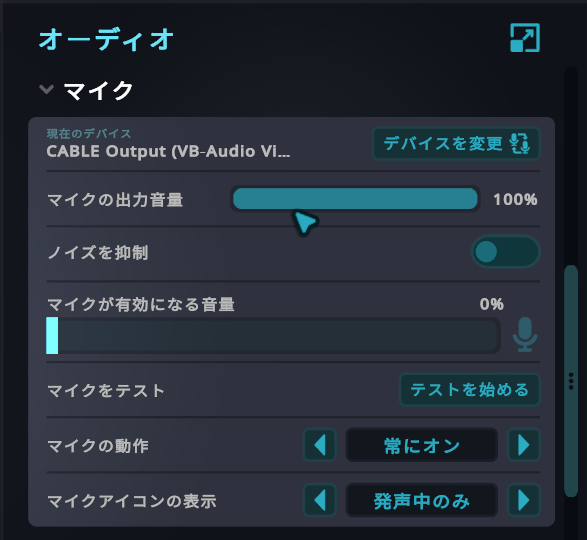
| VRChat microphone set to CABLE Output | Check VRChat Settings > Audio |
| Reselect the VRChat microphone | Even if CABLE Output is selected, switch to another device and back. VRChat keeps its startup device until reselected; restarting VRChat also works |
| VRChat microphone muted | Unmute it in VRChat |
| CABLE Output chosen as Mutelink microphone | Select your physical microphone in Mutelink instead |
I cannot hear my synthesized voice
With only CABLE Input selected, others hear the voice but you do not. In Settings > Sending > Speech basics > Speakers, select both CABLE Input and your headphones/speakers. Adjust their volumes separately.
No text in VRChat
| Check | Action |
|---|---|
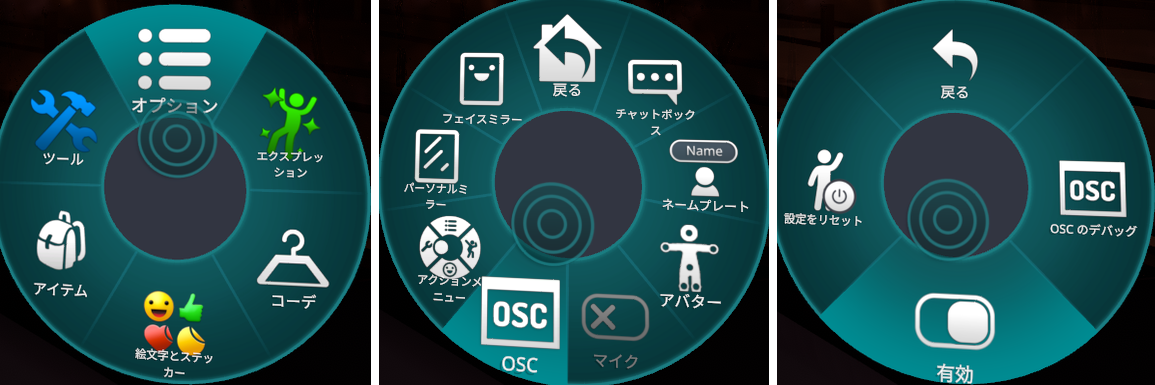
| OSC enabled | Action Menu > Options > OSC > Enabled |
| Main-screen chatbox button | Turn it on to send chatbox messages |
| Text actually sent | With automatic sending off, recognition alone does not send text. Use Send |
| Waiting for speech to start | “Show when speech starts” under Settings > Sending > Speech basics delays text until speech begins (up to 8 seconds) |
| Chatbox hidden in VRChat | Check VRChat’s own settings |
Recognition does not work or cuts out
| Check | Action |
|---|---|
| Recognition enabled | Turn on the main-screen recognition button |
| Correct microphone | Settings > Speaking > Microphone: select the microphone you speak into |
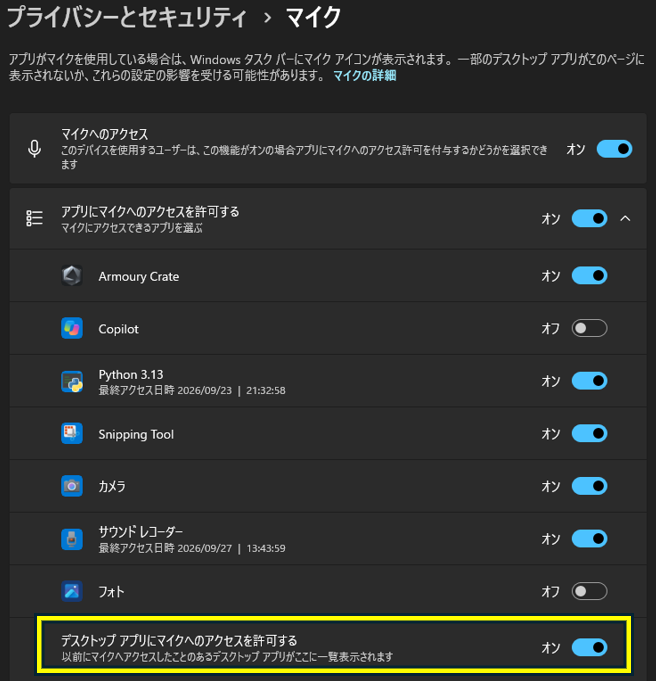
| Windows microphone access | Settings > Privacy & security > Microphone: allow desktop apps to access the microphone |
| Model downloaded | Local engines need an initial download; check Settings > Other > Models and storage |
| Cannot connect to recognition service | Cloud services may fail due to network/provider issues. Select a local engine in Settings > Speaking > Language and recognition (comparison) |
| Engine supports the language | Parakeet Japanese TDT/Haas-ja are Japanese-only; Parakeet English cannot recognize Japanese |
| Only certain words missing | Check whether they are in excluded words |
Downloads fail
The error reason appears on screen. Partial downloads are kept; press Download again to resume.
| Message | Action |
|---|---|
| Connection lost or stalled | Check your network and try again |
| File missing at provider | The download location may have changed. Update the app (Settings > Other > About) |
| Provider not responding | May be temporary; wait and retry |
| Corrupt file | It was deleted automatically; download again |
| Not enough disk space | Free space and retry. Check sizes in Settings > Other > Models and storage |
Delete partial downloads in Settings > Other > Models and storage.
Irodori-TTS or Qwen3-TTS does not work
| Check | Action |
|---|---|
| Vulkan support | A Vulkan-compatible GPU and driver are needed. Update your GPU driver |
| Available VRAM | Shared with VRChat and local translation. Lower VRChat graphics, run translation on CPU or use VOICEVOX |
| First utterance is slow | Model loading takes time after startup or voice switching |
| Slow engine switching | Only one Irodori/Qwen engine is loaded at a time. Changing output language may take several seconds |
Translation does not happen
| Check | Action |
|---|---|
| Different input/output languages | Translation occurs only when spoken and output languages differ |
| Engine ready | Enter an Azure key or download PLaMo/TranslateGemma in Settings > Translation (comparison) |
| Azure key and region | See Azure setup troubleshooting |
| Translation appears but no voice | Reading translations requires the supporter edition and a compatible voice (Qwen for non-Japanese) |
On translation failure, an error is shown and only the original text is sent to the chatbox.
Incoming speech does not appear
| Check | Action |
|---|---|
| Listening enabled | Start with the main-screen 👂 button |
| VRChat running | Only the app selected in Settings > Listening > Incoming speech (VRChat by default) is captured. Otherwise, it waits for that app to start |
| Model downloaded | Check Settings > Other > Models and storage |
| Continuous BGM | It may prevent utterance boundaries. Increase voice-detection strictness in Settings > Listening > Incoming speech |
| Your synthesized speech missing | Mutelink’s own speech is deliberately excluded |
No panels in VR
| Check | Action |
|---|---|
| SteamVR running | Mutelink reconnects every few seconds. Restart Mutelink with SteamVR open if needed |
| Other overlay apps | Check controller-button conflicts with other SteamVR overlays |
| Attach to hands | Requires the Customization supporter extension. Without it, panels stay in your view |
The app will not start
Reinstall the latest version and restart Windows. If it still fails, contact the developer through BOOTH or X (@nktssbat, @yuki54625).