
Getting started
Follow these steps from installation to talking in VRChat. Quick Setup guides you through settings inside Mutelink; this page focuses on preparation outside the app.
1. Install VB-Audio Virtual Cable
This free software routes synthesized speech to the VRChat microphone. Skip this step if you only use the chatbox.
- Download and install VB-Audio Virtual Cable.
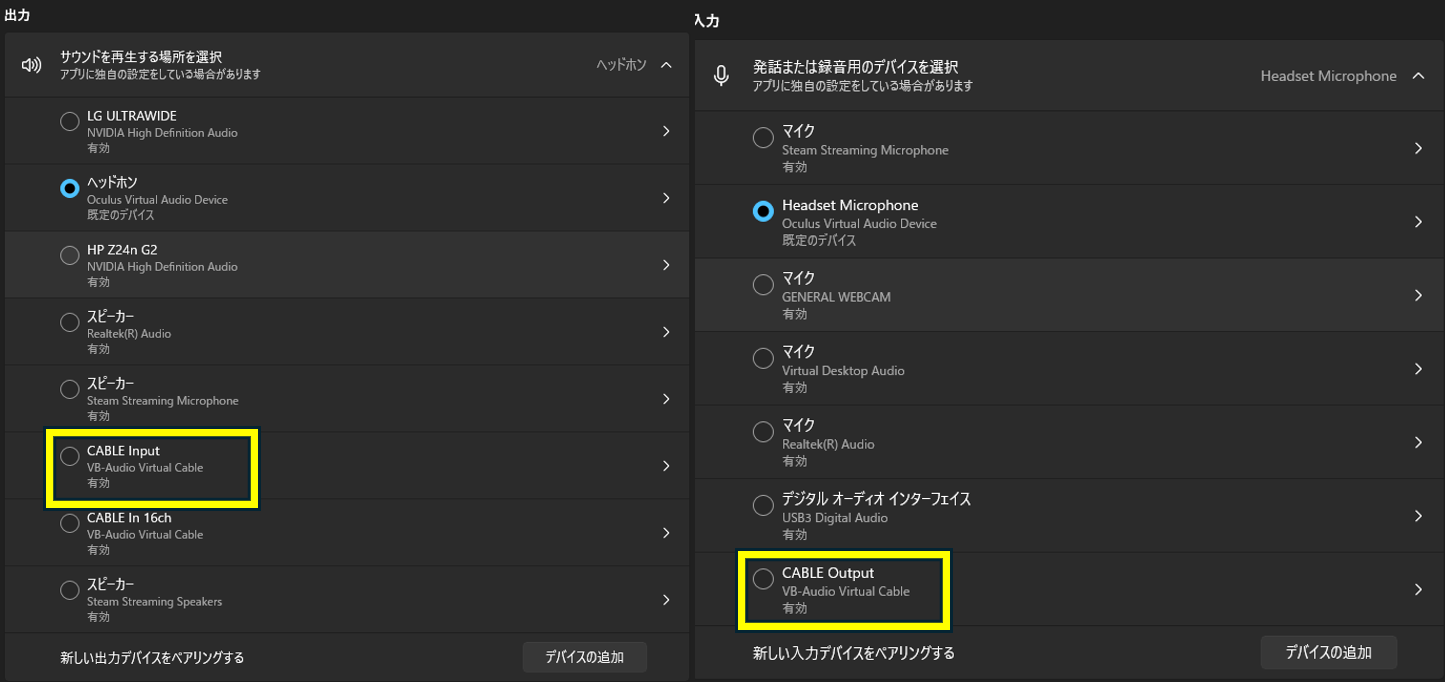
- Check that “CABLE Input” and “CABLE Output” appear in Windows sound settings. Restart your PC if they do not.
Install it before Mutelink. If you installed it while Mutelink was open, restart Mutelink.
2. Install Mutelink
- Download the installer (
Mutelink_x.x.x_x64-setup.exe) from Releases or BOOTH. - Run it. Administrator privileges are not required.
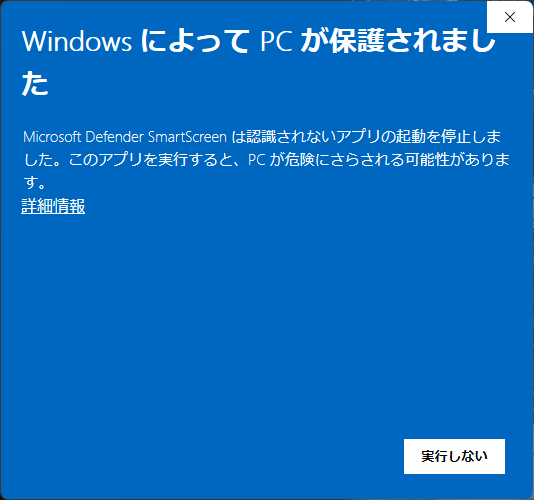
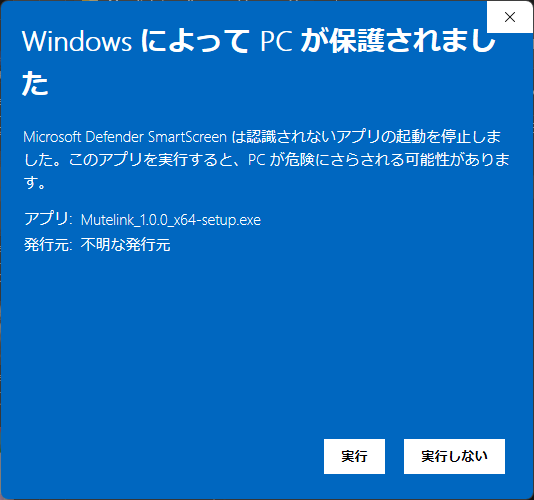
The app is not code-signed, so Windows may display “Windows protected your PC.” Click “More info” and then “Run anyway.”
| ① Click “More info” | ② Click “Run anyway” |
|---|---|
 |  |
3. Complete Quick Setup
Quick Setup opens on first launch. Choose how you want to use the app: speaking, translation, typing, reading others’ speech as captions, or VR. Only the relevant settings are shown.
Pay particular attention to these three settings.
- Microphone: select the microphone you speak into. Do not select “CABLE Output,” or the app will recognize its own synthesized speech.
- Speakers: for speech synthesis, select both “CABLE Input” to send audio to VRChat and your own speakers or headphones for monitoring.
- Recognition engine and voice: if unsure, see speech recognition engines and voice samples. You can change them later.
Run Quick Setup again from Settings > Usage.
4. Configure VRChat
For voice output
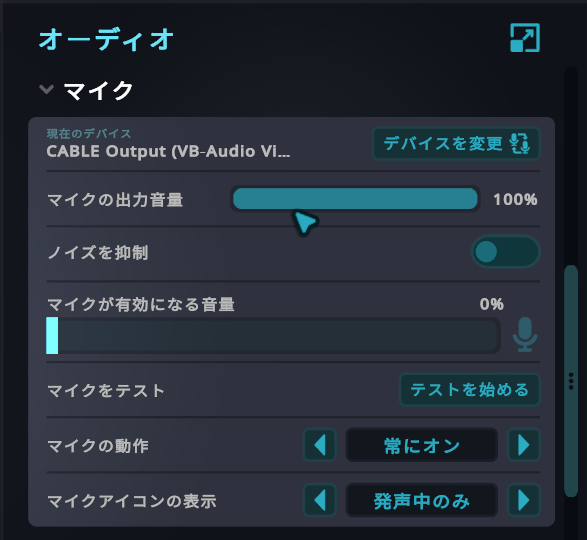
In VRChat Settings > Audio, select “CABLE Output” as the microphone.
Do not leave the microphone on “Default”
With “Default,” VRChat may use your physical microphone and share your own voice. Always select “CABLE Output.”
Keep the VRChat microphone toggled on so synthesized speech is not cut off.
For chatbox-only use
Mute your VRChat microphone. Otherwise, others can hear the voice you use for speech recognition directly.
For chatbox messages
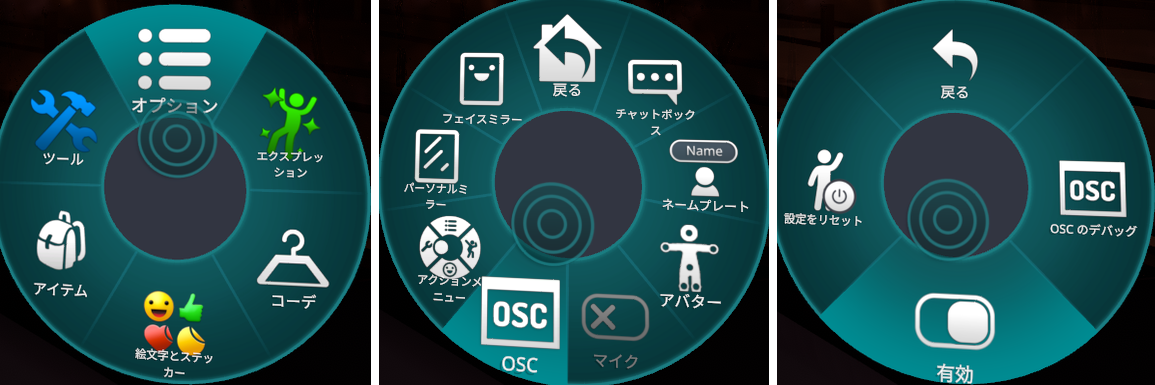
Enable OSC in VRChat (Action Menu > Options > OSC > Enabled).
5. Try it
Enable recognition on the main screen and speak into your microphone. Review the recognized text and send it, or enable automatic sending.
Press “?” at the top right of settings to see explanations of buttons and settings.
If something does not work, see Troubleshooting.